
Reusable templates and new AI models
Save your church graphics as reusable templates, explore Church Canvas designs, and try Nano Banana 2.1, FLUX 3, and GPT Image 2.6 for your next project.
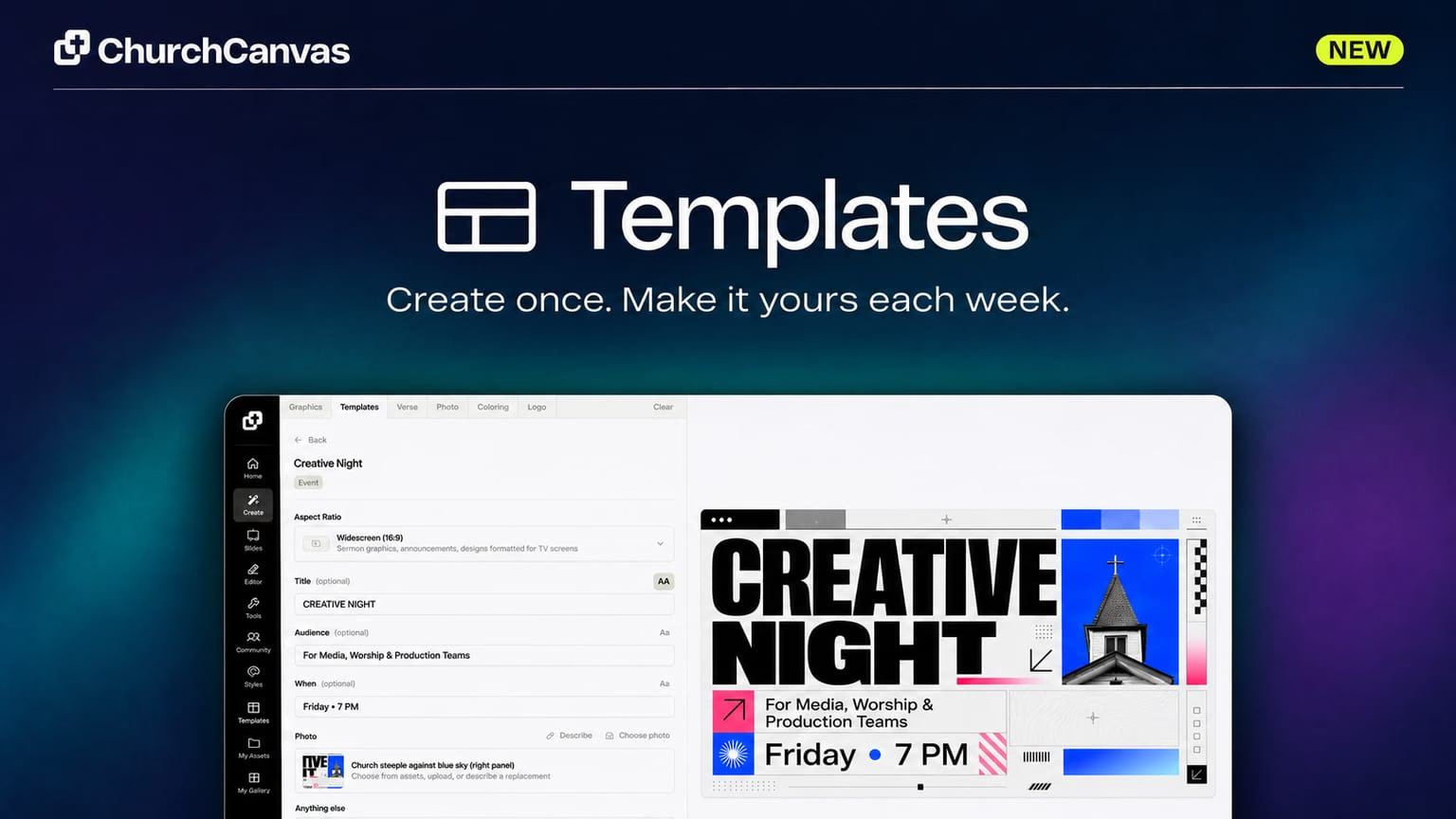
You can now turn a graphic from your gallery into a reusable template for the next sermon, event, or weekly announcement. We have also updated the model picker with Nano Banana 2.1, FLUX 3, and GPT Image 2.6.
Keep a design you want to use again.
When your team finds a look that works for a sermon series, you should be able to come back to it next week. Personal templates give that design a home.
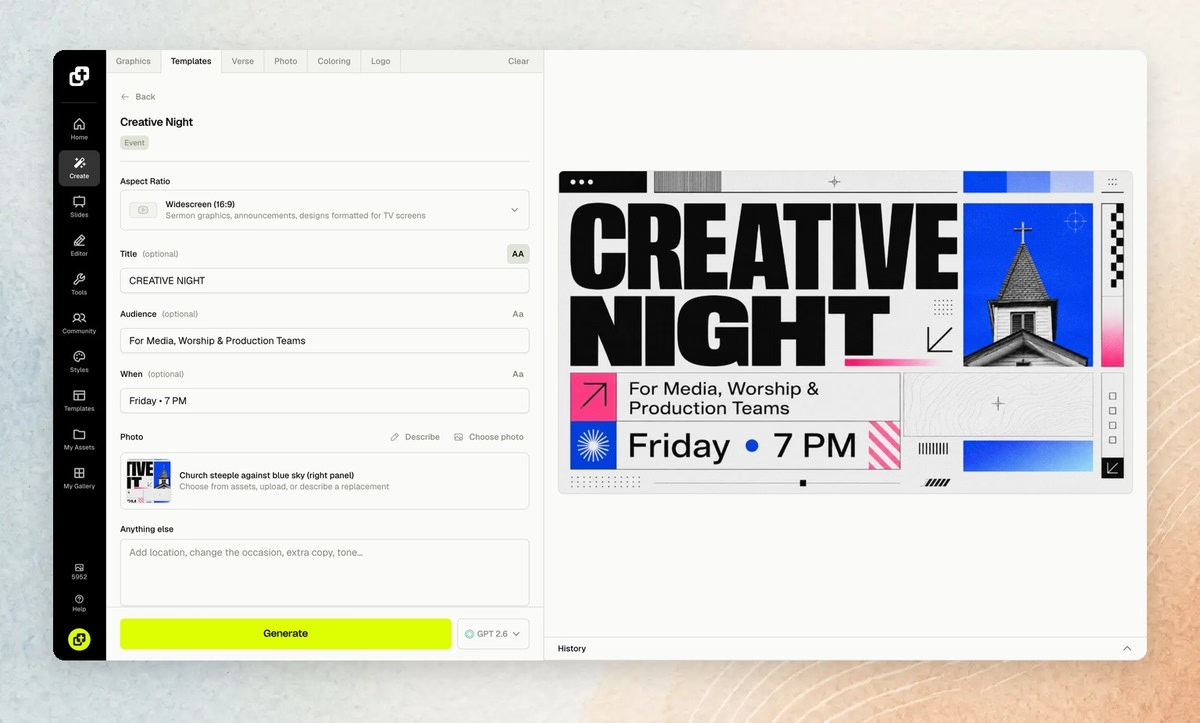
Open a graphic in your gallery and choose Create template. Before saving, review the text fields and artwork the template will use. You can adjust field labels, correct the text, and add or remove fields to fit your graphic.
Then open Templates → My Templates → Created by me. Click a template to use it, enter the new wording, and generate a new version. The menu beside its title lets you edit or delete the saved template.
For a weekly youth night, that might mean changing the date and speaker. For a sermon series, it might mean a new title and Scripture reference. You start from the saved design each time, and the new graphic appears in your history. Your saved template stays available even if you delete the original graphic from your gallery.
Templates guide a new AI generation, so check the finished wording and artwork before sharing.
Start with a Church Canvas template.
The Church Canvas tab includes a small collection of designs for ministry events and announcements, including Youth Night, Worship Night, Men’s Retreat, and Church Picnic. More templates are coming soon.
Plus members can open a catalog template and customize it through the same generation flow. Bookmark the ones you want to use again, and find them under My Templates → Saved.
Your own creations and saved catalog designs stay in separate collections. Both show the full artwork, whether the graphic is square, landscape, or portrait.
What’s included in each plan?
| Plan | Template access |
|---|---|
| Basic | Create and reuse your own templates with Nano Banana 2.1. |
| Plus | Create your own templates, plus use and save Church Canvas templates. |
| Existing Free accounts | Browse Church Canvas templates. Upgrade to create, use, or save. |
Basic template generations cost 1 credit at 1K or 2 credits at 2K. You can compare the subscriptions on our pricing page.
Meet the updated model picker.
Open the model picker beside Generate to choose a model and see its available options. The picker groups the choices so you can find the main models and their settings in one place.
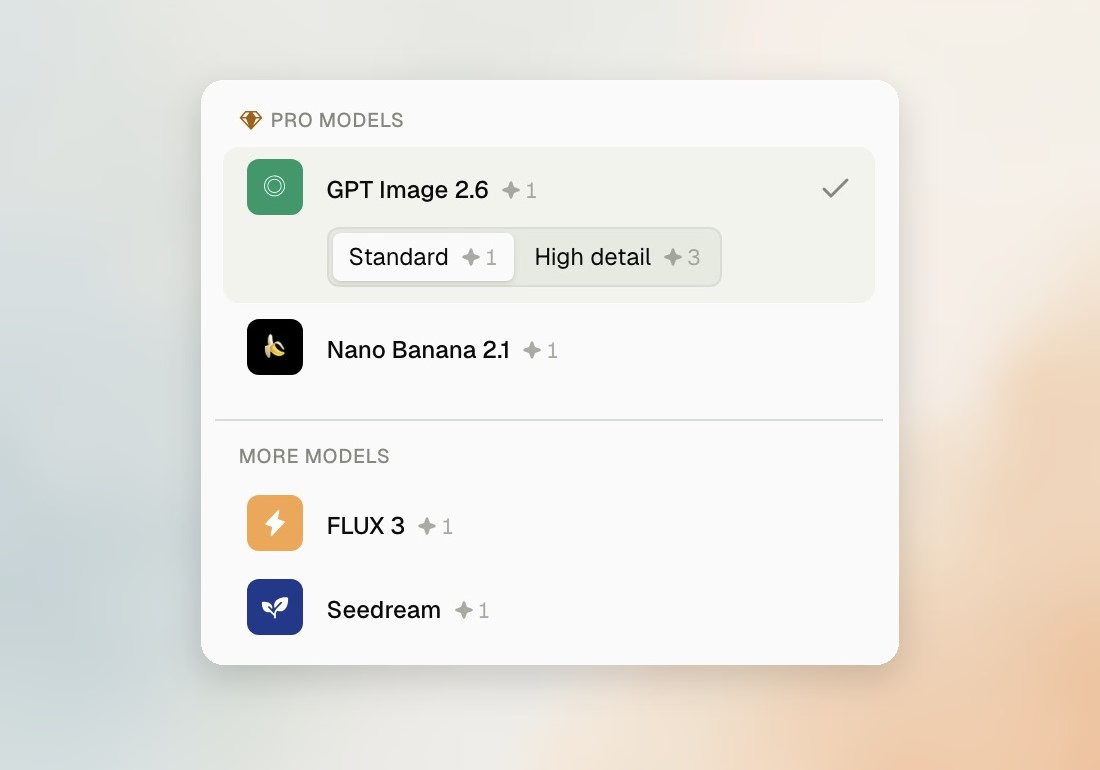
Nano Banana 2.1.
Nano Banana 2.1 is now the default for Basic graphics. Choose 1K for 1 credit or 2K for 2 credits in the picker. It is also available on Plus.
Basic members can still switch to P Image for regular graphics. Personal templates on Basic use Nano Banana 2.1 so the generation can work from your saved artwork. Existing Free accounts continue to use P Image for regular graphics.
FLUX 3.
Plus members can now choose FLUX 3, with 1K and 2K size options and support for reference images. It gives your team another model to try on event graphics and social posts while keeping the same Church Canvas generation flow.
GPT Image 2.6.
The GPT option has been upgraded to GPT Image 2.6 for Plus, with standard and High detail choices. Standard generations cost 1 credit; High detail costs 3 credits. The model name is also recorded in the graphic’s details so you can see which option made a result you want to revisit.
Try it with next week’s graphic.
Pick a graphic your team already likes and save it as a template. Update the title, date, or Scripture for next week, then generate a new version. For a fresh design, try the updated model picker with a prompt from your church calendar.
Templates and model updates
Can I make a template from a graphic I already created?
Yes. On Basic or Plus, open one of your gallery graphics and choose Create template. Review the editable text and artwork, then save it to My Templates.
Which plan includes Church Canvas templates?
Plus includes using and saving Church Canvas templates, as well as creating your own. Basic includes creating and using your own templates. Existing Free accounts can browse the catalog but need to upgrade to use, save, or create templates.
How many credits does a Basic template generation use?
Basic templates use Nano Banana 2.1. A 1K generation costs 1 credit and a 2K generation costs 2 credits. P Image remains available for regular Basic graphics, but not templates.